
The 15-Minute Phone Setup Every Parent Should Do Before Handing Over a New Device

A plain-language guide from Click Kind
Handing your child their first phone is a big moment. There is the excitement on their face, the promise to be responsible, and somewhere underneath it all, that quiet knot in your stomach. You want them to have the good parts. You just want to keep the scary parts out.
Here is the reassuring news. You do not need to be tech-savvy to set up a phone safely. You do not need to understand how any of it works under the hood. You just need about 15 minutes and this checklist. Do these steps before you hand the phone over, while it is still in your hands, and you will have done more to protect your child than most parents ever do.
Grab the phone, find a comfortable seat, and let us walk through it together.
First, the one thing that matters most
Before any settings, take a breath and remember this: the most powerful safety tool is not an app. It is your child knowing they can come to you with anything, and that you will not be angry. The people who want to hurt kids online count on one thing above all, that a child will be too embarrassed or too scared to tell a parent. Your calm is what breaks that.
So the setup below is the seatbelt. The conversation at the end is the driver. Both matter. Do not skip the talk.
The 15-minute setup
You can do these in any order. On an iPhone, you will mostly be in Settings, under the Screen Time section. On an Android, you will use a free app called Family Link. Do not worry about memorizing names. Just follow along, and if a screen looks a little different on your phone, the same options are there, just with slightly different wording.
- Set the phone up as a child or family account (about 2 minutes).
When the phone first turns on, set it up under a child or family profile rather than a plain adult account. On Apple, this is Family Sharing; on Android, it is a child Google account managed through Family Link. This one choice keeps you as the grown-up in charge, so every setting below stays locked to your child and not to them.
- Turn on the built-in parental controls (about 2 minutes).
This is your control panel for everything else. On iPhone, open Settings and tap Screen Time. On Android, open the Family Link app. Everything from here lives in that one place, which means you only have to find it once.
- Block the content they should not see (about 2 minutes).
In those same controls, turn on content filters. This blocks adult websites, filters explicit results, and sets the app store to an age limit so they cannot download something meant for adults. While you are there, switch app downloads to ask first, so a request comes to your phone for approval before anything new gets installed.
- Sort out the location the smart way (about 1 minute).
There are two kinds of location sharing, and the difference matters. You want to be able to see where your child is. You do not want the whole internet to. Turn on the family location sharing so you can find them, and turn off location sharing inside social and camera apps so strangers cannot. You see them, no one else does.
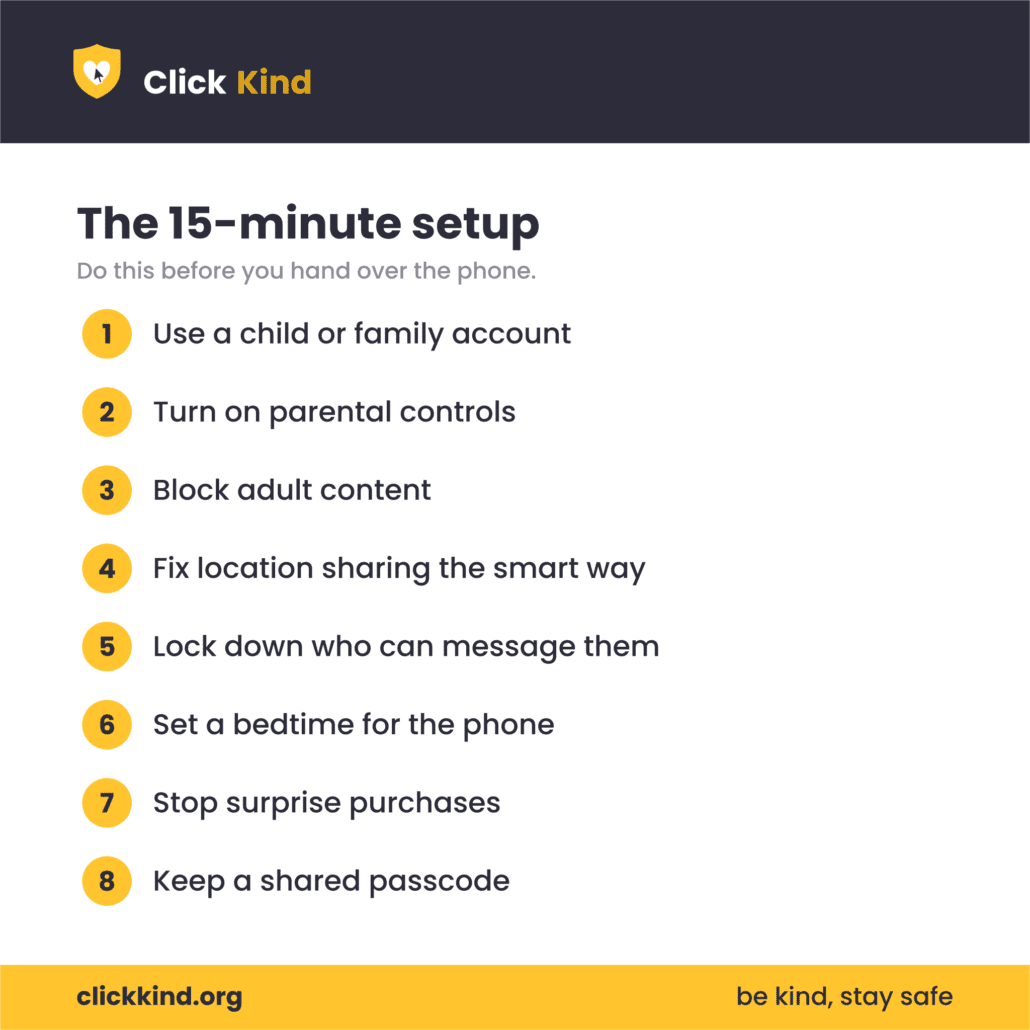

- Lock down who can reach them (about 2 minutes).
If you are adding any social or messaging apps, set every account to private, and set messages so that only approved contacts or friends can write to them. The goal is simple. A stranger should not be able to slide into your child’s messages. This single setting closes the door that most predators try to walk through.
- Build in a bedtime for the phone (about 1 minute).
Set a downtime schedule so the phone winds down at night, for example, from 9 pm to 7 am. Pair it with one house rule that beats any setting: phones charge overnight in the kitchen or living room, not in the bedroom. Sleep and a little distance from the screen protect more than you would think.
- Stop surprise purchases (about 1 minute).
Turn on the password requirement before any purchase, and switch off in-app purchases. This protects your wallet from the surprise $80 of game coins, and it protects your child from being pressured into spending by a game or a stranger.
- Keep a key to the house (about 1 minute).
Set a passcode, and make sure you know it too. This is not about snooping. It is about the agreement that the phone is something you share, especially in the early years. Say it out loud and plainly, so it never feels like a betrayal later.
Now the part that actually keeps them safe
Settings done. Take two more minutes for the thing that matters most. Sit down together and agree on a few simple family rules. Keep them short enough to remember:
- We never share photos, passwords, codes, or money with anyone online.
- We never move a conversation to a private or secret app with someone we have not met in real life.
- If anything online ever feels weird, scary, or confusing, we tell each other, and nobody gets in trouble for telling.
That last one is the heart of it. Say it clearly and mean it. Promise that if they come to you with a mistake, your first reaction will be to help, not to punish. A child who believes that is a child who is protected, because they will tell you early, while you can still help.
If you only do three things
Short on time? Start here, and come back for the rest later.
- Turn on the built-in parental controls and block adult content.
- Set their accounts to private so strangers cannot message them.
- Make the no-blame promise out loud.
Those three alone put you ahead of the curve.
You’ve got this
Setting up a phone safely is not about being a tech expert or locking your child in a bubble. It is about a few smart choices made once, and an open door between you and your child that stays open. Fifteen minutes today buys a lot of peace of mind tomorrow